
Surveys
On this page:
InviteDesk offers an integrated survey solution, not only to track event satisfaction, but also to gather the preferences of your invitees at different touch points. You can send surveys after an event but also in case people decline your invitation or are too late to register. You can find the results of your surveys on the event dashboard (see "Survey results" on the Event dashboard page).
There is also a centrally managed surveys section on the top bar — see "Create a predefined question" and "Create a predefined questionnaire" on the Library page.
On an event dashboard on the right-hand side, you can specify 3 types of surveys for your event, each linked to a different stage in the process:

Event satisfaction
When a guest declines
When registration is closed
How the survey editor works (all 3 types)
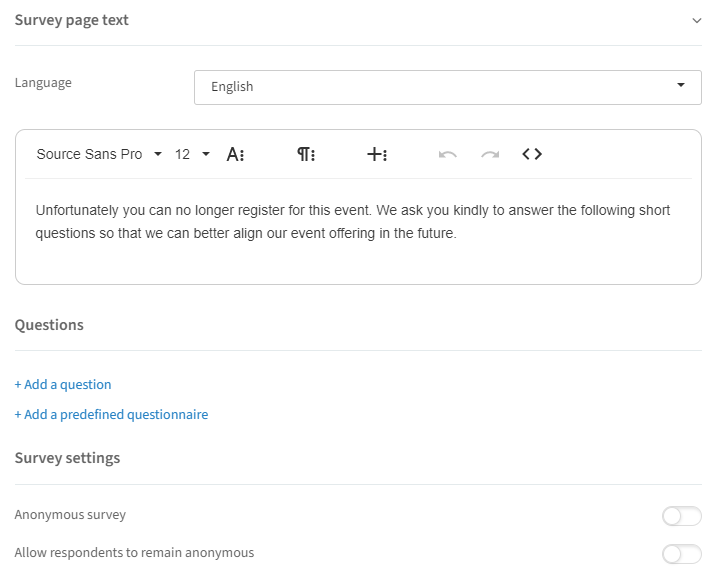
The survey is created in a format that is very similar to the registration page editor. After you select the survey, you will see the following:
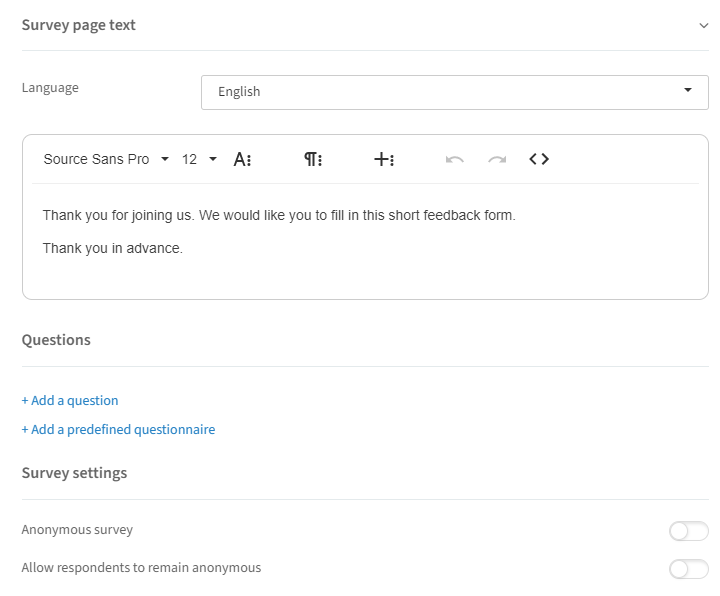
Language: choose your desired language.
Text editor: adjust the text to your liking.
+ Add a question: add a brand new question or select one of the predefined questions you have created.
+ Add a predefined questionnaire: add a predefined questionnaire you have created.
After you have added the questions or questionnaires you want, you will have the following possibilities:
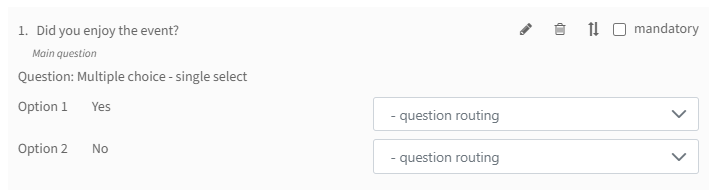
Edit: with the pencil icon, you can edit the question. This option is only available for newly created questions — not for predefined questions/questionnaires.
Remove question: with the trashcan icon, you can remove the question from this survey.
Change order: with the two arrows icon, you can change the order of the question in the survey.
Mandatory: by activating this checkbox, the question must be answered by your contacts.
Question routing: when you have more than 1 question, you can apply routing. For example, if a contact answers "Yes" to question 1, only then show question 2.
We have foreseen some additional privacy settings on questionnaire level:
When selecting "Anonymous Survey" you can decide that all answers will remain anonymous.
You can also leave the choice to remain anonymous to the respondent.
Once you've done all the necessary steps, click "Save" and your survey is created.
Event satisfaction
This survey can be made accessible for your guests, once created, in the thank you mail that is sent after the event, or it can be added to a Write new email (Ad hoc) — see the Event communication page.
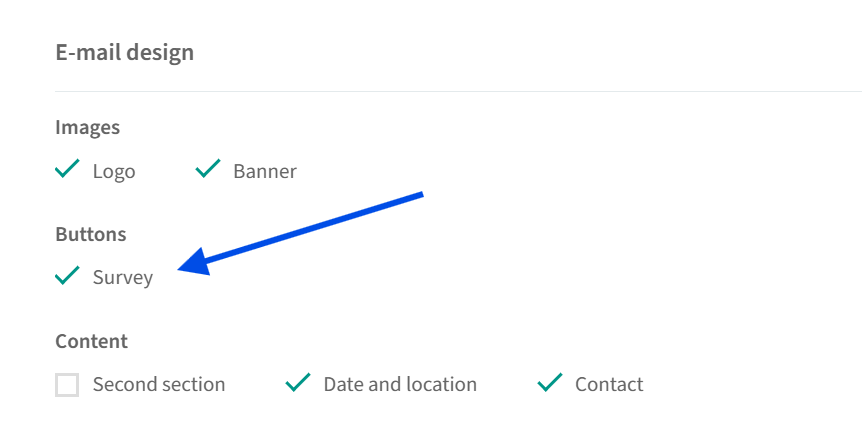
How to send out your survey: you can include an embedded survey button in your email communication (either in the Pre-event mail or in a New email). Note: the option to include a Survey button appears only after you create a survey for your event.
When a guest declines
When your invitee declines the invitation by hitting the "Decline" button in the invitation mail, they will be shown the "When a guest declines" survey if activated in your dashboard. This survey can also be made accessible for your guests, once created, in a Write new email (Ad hoc) to the target group "Declined" (see the Event communication page).
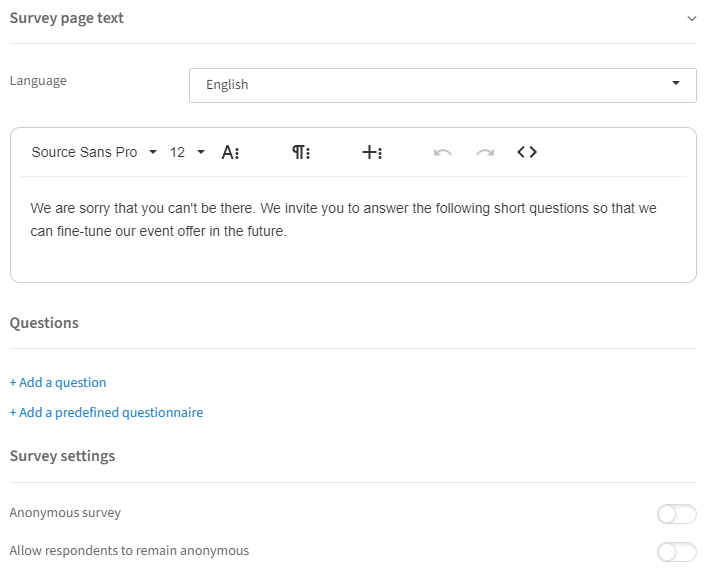
When registration is closed
When your tickets are all gone or when the registration form is closed, your invitee will have the possibility to complete the "When registration is closed" survey if activated in your dashboard.
Tip: you can consult your survey results on the event dashboard (see "Survey results" on the Event dashboard page).