
Address Book
All your contacts in one place. You can find the address book on the top bar:

On this page:
Contacts Overview
Contacts: Filters & actions
With InviteDesk you will have access to an address book that will store your users and also all your contacts that were invited to an event or sent a mail by using a mailing campaign in InviteDesk.

Filters
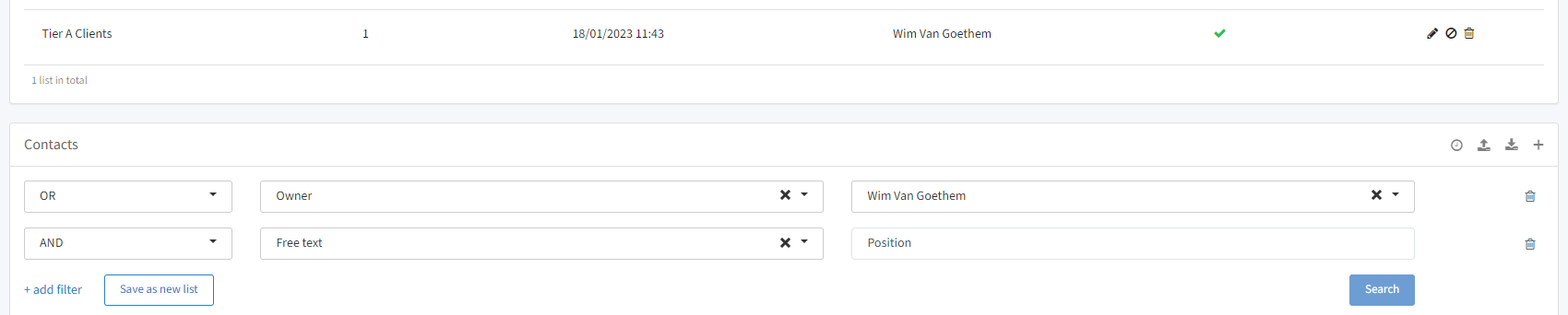
By clicking on "+ add filter", you can add a new filter and by clicking the trashcan icon on the right-hand side of the filter, you can delete that filter. You can apply the following filters:
Filter on several fields and choose "AND" / "OR" / "NOT": by default, you will have "OR" and "Free text" activated. You will have the following possibilities:
Contact properties: Free text (name, email, job title, company), Owner, Contact type (employee/business relation), Contact status (active/inactive), City, Language, SMS permission, Tags.
Custom fields: search on custom fields if you have created them.
Mailing permissions: Event, Mailing campaign, and any extra permissions you've added.
Events: Invited for event, Attended event, Registered, Declined/Expired.
Last activity: Invited From-To, Attended From-To, Registered From-To, No show From-To.
By clicking on "Save as new list", you can create a new list (see Public lists / My lists below).
Actions

View activities: by clicking the clock icon, you can view the activities of users in the system. Only visible for admin users — contact InviteDesk for more details.
Export contacts: export your contacts into an Excel file (see Export contacts below).
Import contacts: use an Excel file to import your contacts (see Import contacts below).
Add new contact: click the "+" icon to add a new contact (see Add new contact below).
On the right-hand side of your contacts in the address book, you will see the following icons:

Events history: click the information icon to see the event history of your contact, filterable by Confirmed, Pending, Waiting, Declined/Expired.
Edit contact: click the pencil icon to edit your contact.
Disable/Activate contact: click the icon next to the pencil.
Remove contact: click the trashcan icon to remove the contact completely. If the contact was on an event invitation list, it will now be labeled "Anonymous anonymous".
Add new contact
By clicking on the "+" sign on the right-hand side of the "Contacts" section in the address book, you can add a new contact. You will see the following:
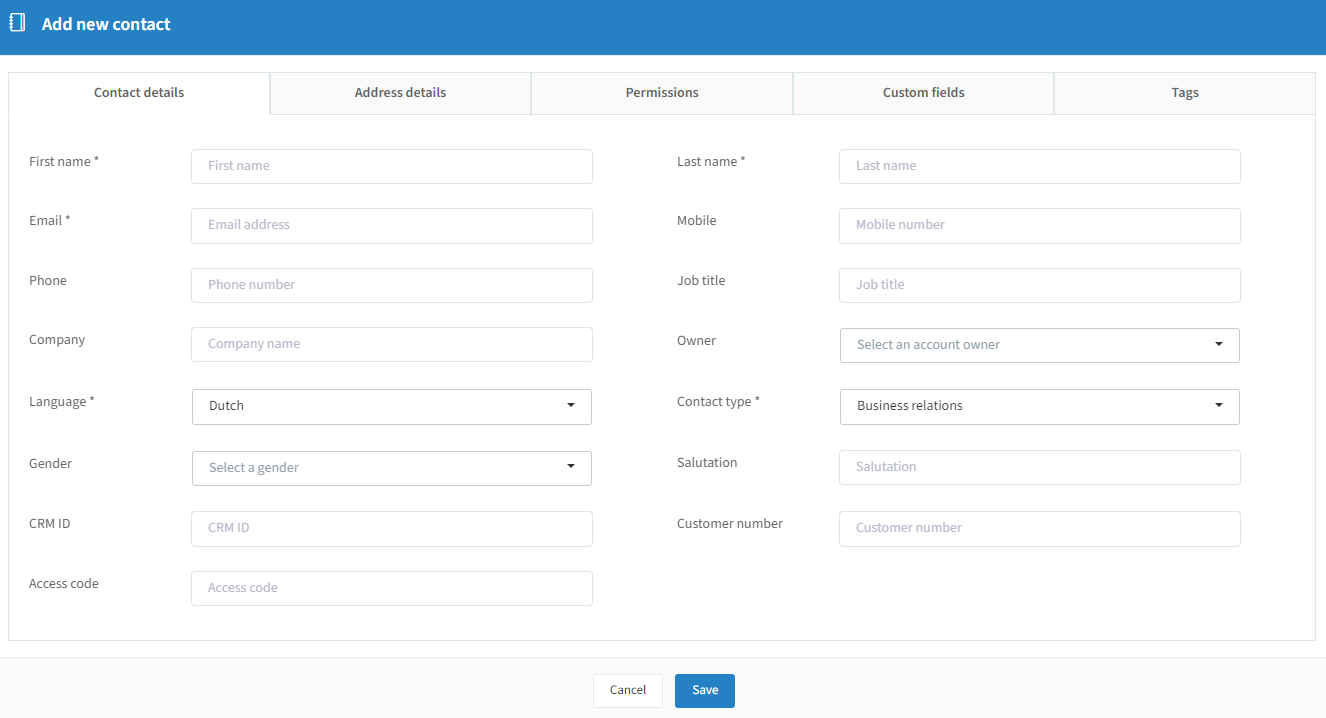
Fill in the details with as a bare minimum the mandatory fields marked with *. When done, click "Save" at the bottom — the new contact will now be added to your address book.
Import contacts (Excel)
By clicking on the import contacts icon on the right-hand side of the "Contacts" section, you can add contacts by importing an Excel file. The system will take you through an easy-to-understand wizard:
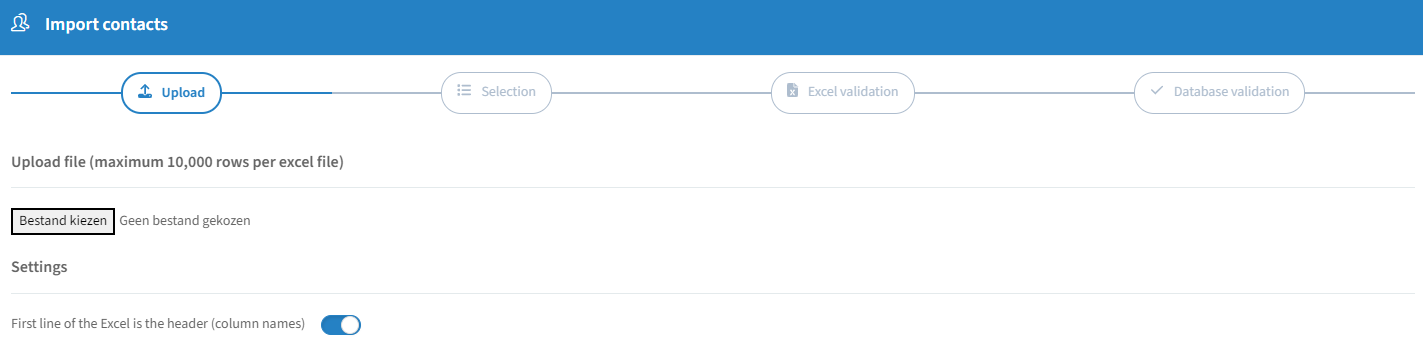
Choose your file (maximum 10,000 rows per Excel file) and indicate whether the first line is data or column headers.
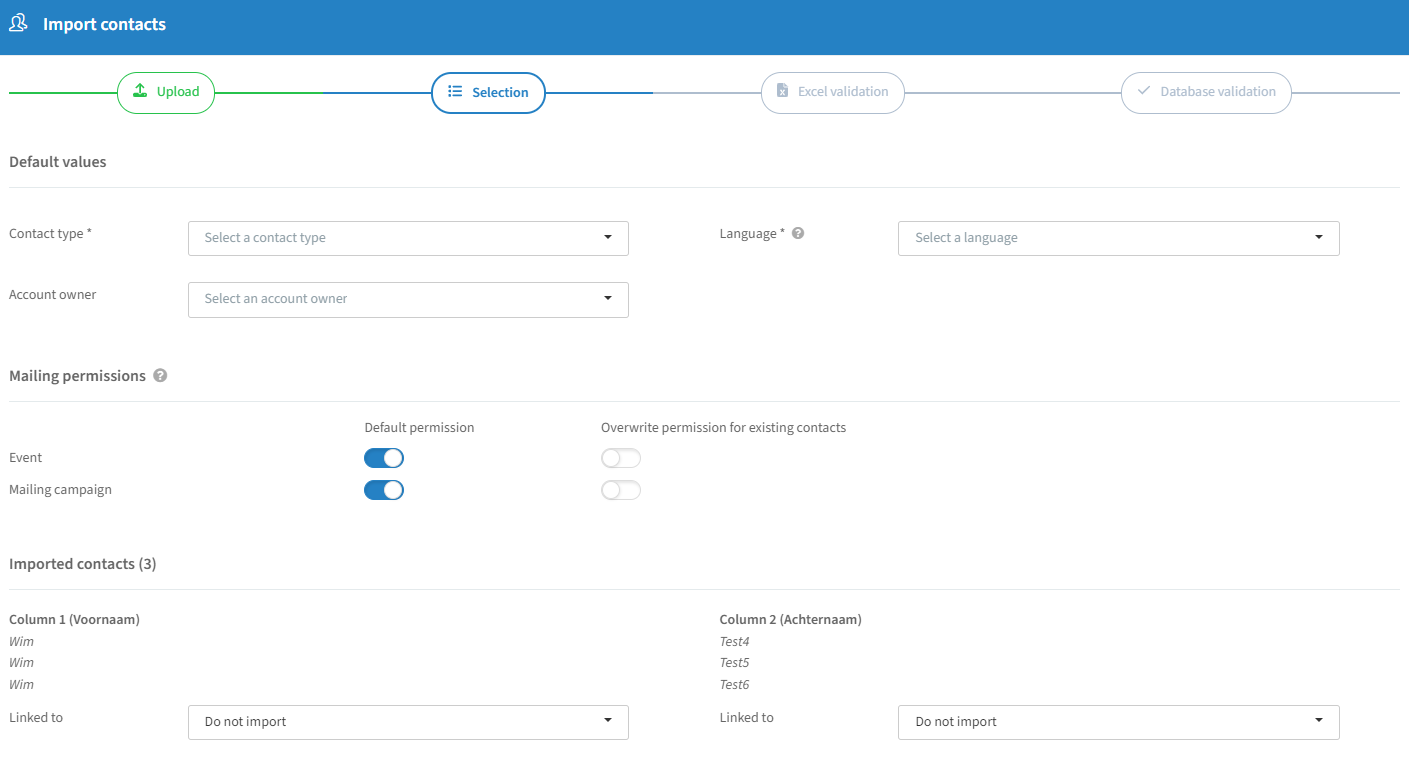
Contact type: "Employees" or "Business relations".
Language: default communication language if not present in your Excel file.
Account owner: the account owner linked to the imported contacts.
Mailing permissions: default mailing permissions if not present in your file. Activating the right slider applies the default permission to all contacts — note: this overwrites any existing permission.
Imported contacts: map your Excel columns to the appropriate data fields. Email is mandatory; you can skip specific columns.
Excel validation:
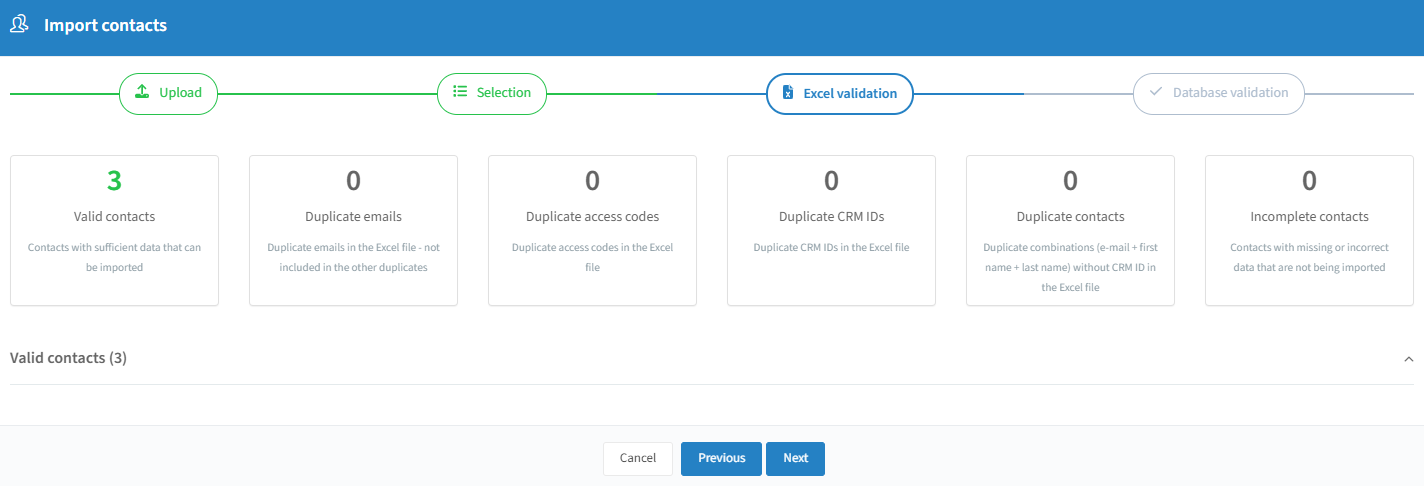
The wizard determines how many valid contacts are in the file and flags duplicates or incomplete data (e.g. "E-mail is empty"), letting you decide what to do with them.
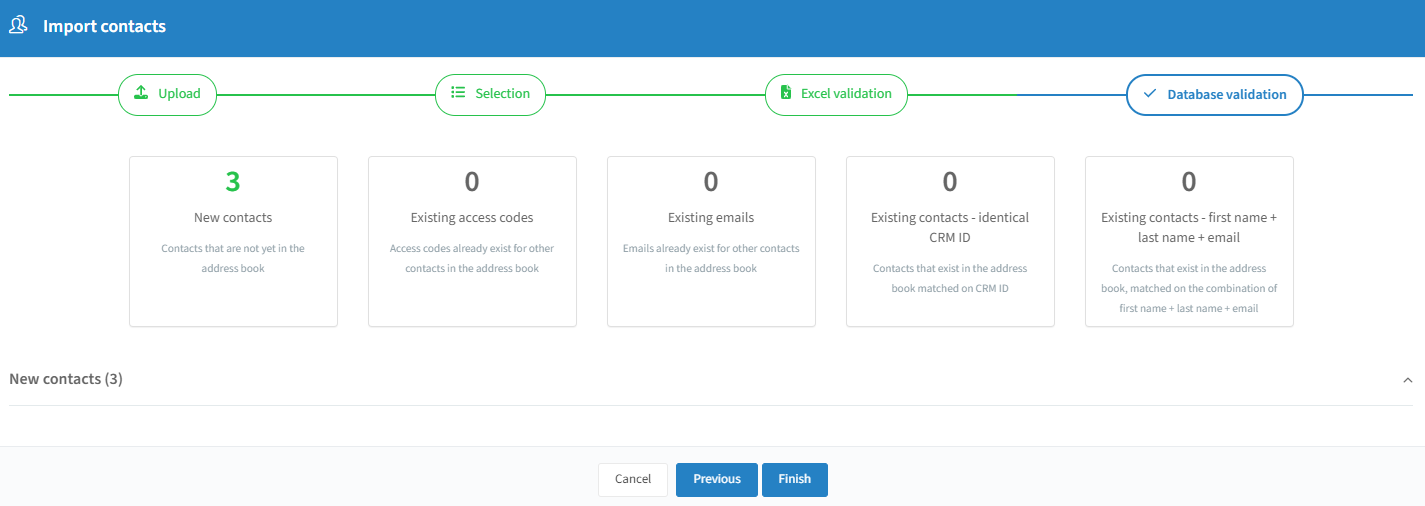
The wizard shows how many new contacts there are versus existing ones, with options for how to handle existing contacts (e.g. skip specific ones). Click "Finish" to complete the import.
Export contacts
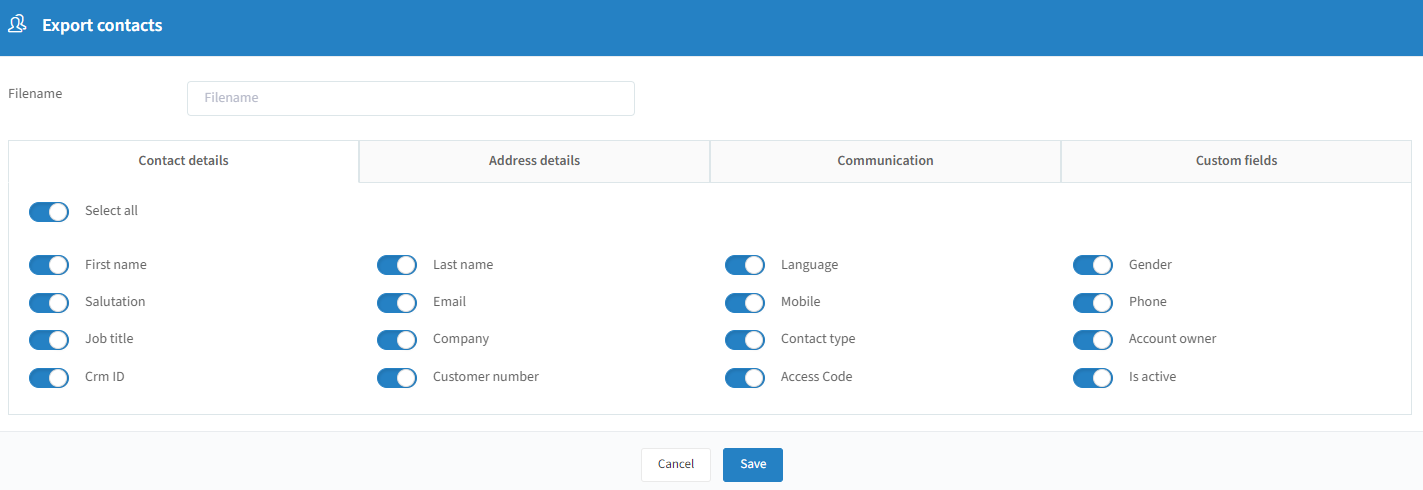
Choose the data you want by navigating the several tabs, and click "Save" to generate your Excel file.
Contacts Lists
Contact lists: Filters & actions


Filters
Filter on owner: search public lists by owner (only visible in "Public lists" — "My lists" are your own private lists).
Filter on active/inactive lists: filter lists by status.
Actions
Search for lists: free text search.
Sorting columns: click a column to sort by it.
Edit list: click the pencil icon to edit name, owner, and list folder.
Deactivate list: moves the list to inactive lists.
Delete list: permanently deletes the list, including from inactive lists.
Public lists
Lists contain all contacts matching specific criteria, giving one-click access to an up-to-date list of matching contacts, and/or letting you restrict invitees for an event to a target group.
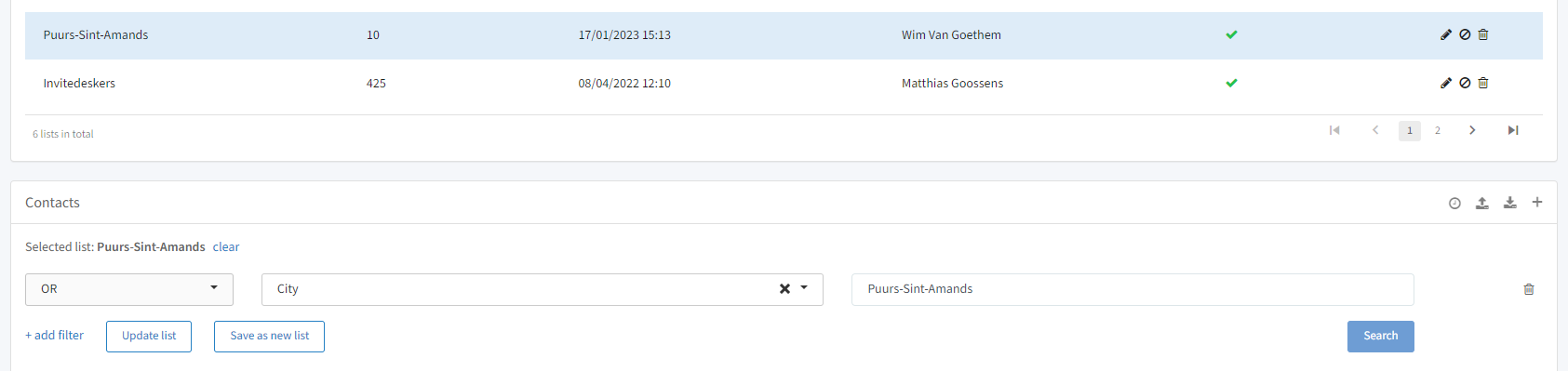


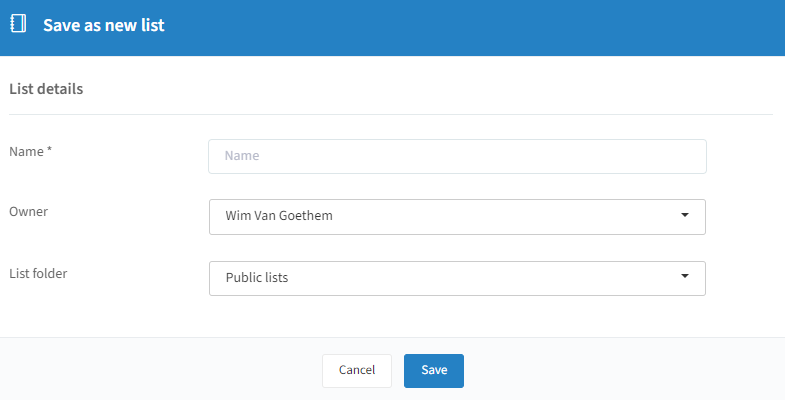
Name: give the list a name.
Owner: define the list owner.
List folder: choose "Public lists" for a public list.
Click "Save" and the list is created.
Tips:
Deleting a contact from a list (e.g. via the delete button) removes that contact from the address book entirely, since the general address book rules apply — only update the list or adjust its criteria to change its contents.
You can add invitees to an event's invitation list by selecting a public or private list while adding invitees from the address book.
You can restrict the target group for an event to a specific public list only, which also blocks Excel imports or manual additions for users without the right user permission.
My lists
Just like public lists, private lists ("My lists") contain contacts matching specific criteria, giving one-click access to an up-to-date list and/or letting you restrict event invitees to a target group.
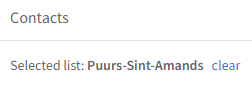
Clicking a list activates its filters and shows matching contacts in the "Contacts" section:

Name: give the list a name.
Owner: define the list owner.
List folder: choose "My lists" for a private list.
Click "Save" and the list is created.
Tip: Deleting a contact from a list removes that contact from the address book entirely — only update the list or adjust its criteria to change its contents. You can add invitees to an event's invitation list by selecting a public or private list while adding invitees from the address book.