
Scanapp
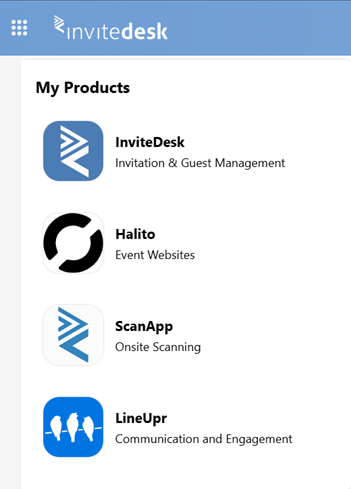
Use our app for advanced ticket scanning. You can access the desktop version of Scanapp by clicking on the Grid icon in the top-left corner of your screen:
On this page:
You can scan the tickets for your event using the Scanapp. For more information about setting up tickets, see "Ticket (Venue or specific access right)" on the Tickets page. If you don't have access to Scanapp, you will need to contact your InviteDesk contact or create a ticket via our Support Helpdesk, because this is a paid feature in InviteDesk.
Once opened, you can select the event you want to use Scanapp for. If tickets have been distributed for your event and you have the Scanapp rights for the event, the following menu will appear:

Check-in
In this section you can scan your tickets using the webcam of your computer or your phone camera. To use your phone camera, open the Scanapp browser app on your phone. Make sure to enable camera access for this website.
If you have access to multiple scan points, you have to select at which point you are scanning before you start.
If your main guests have additional guests, you can use the group check-in option: after scanning the ticket of the main guest, a button will appear allowing you to check in/out all other guests attached to their registration in one click.
Scan points
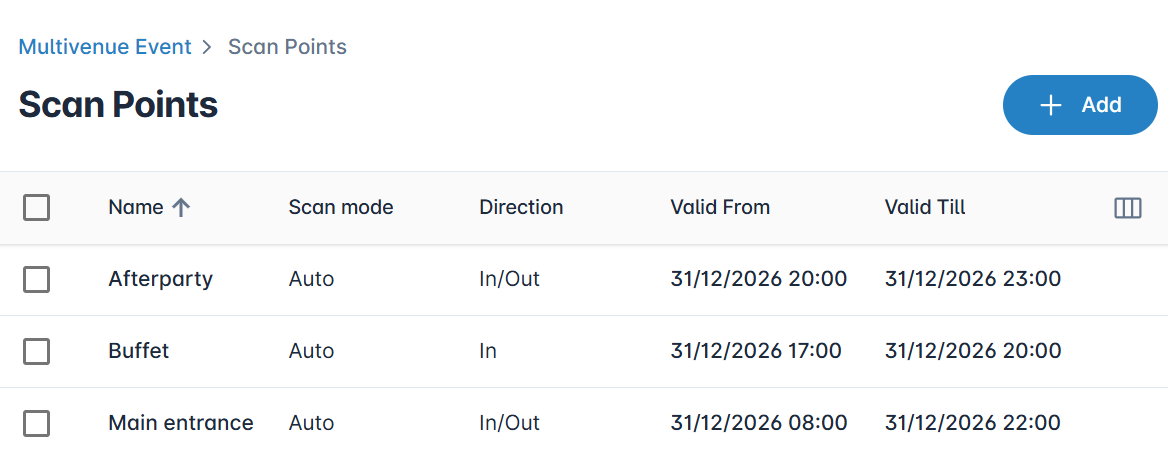
Here you can manage your created scan points. You can:
Add a new scan point.
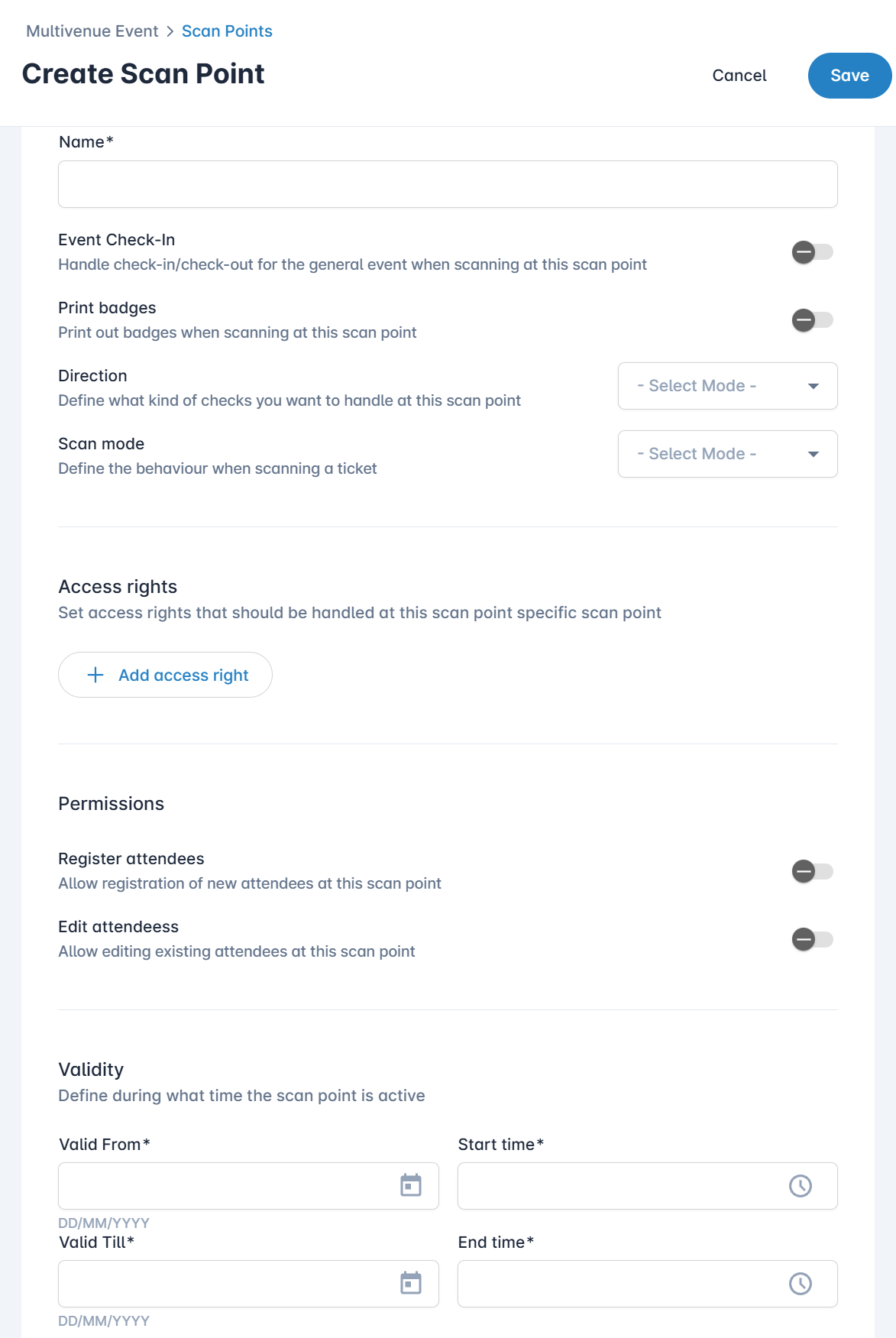
Select whether a scan automatically triggers the check-in process or whether a manual confirmation is also needed.
Select whether you want to automatically print badges after scanning a ticket (see "Create & print a badge" on the Library page).
Set whether the scan point should check in, check out, or both.
Specify whether the scan point should scan the general entrance or specific access rights only (e.g. afterparty tickets, dietary preferences at the buffet).
Assign permissions to edit or register attendees at this scan point.
Set a validity period for the scan point.
Click on "Add scan point" and set it up according to your needs:
Access rights
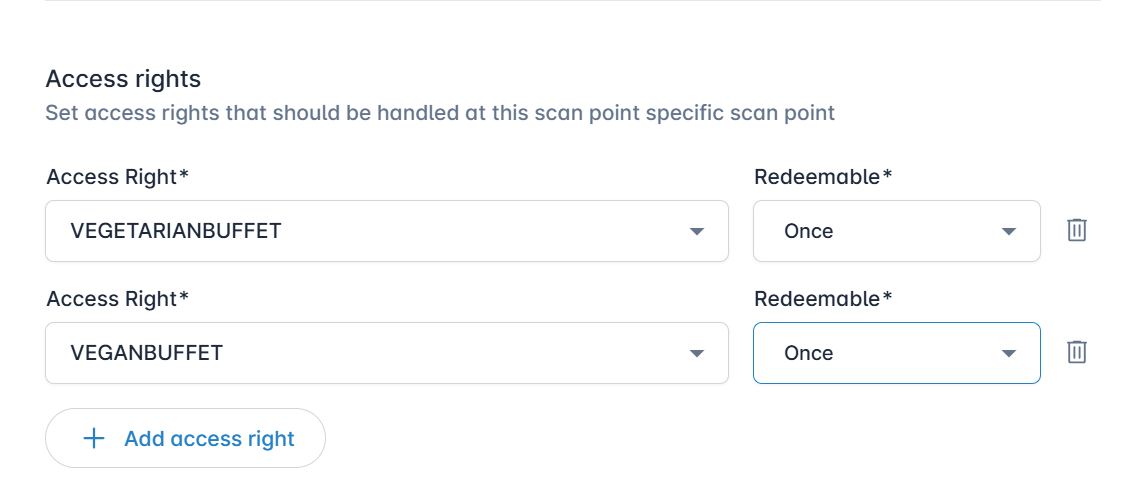
If you don't only want to check guests in or out, you can use scanning for specific access rights too. For example, you can scan tickets at the buffet to register which menu option a guest has selected (an access right must be attached to the ticket — see "Ticket (Venue or specific access right)" on the Tickets page). You can also configure access rights for certain areas such as an afterparty and define whether these rights can be redeemed once or an unlimited number of times.
Scanapp users
You can add users to manage scanning. Users can be internal users (already registered in InviteDesk) or external users.
Adding an external user
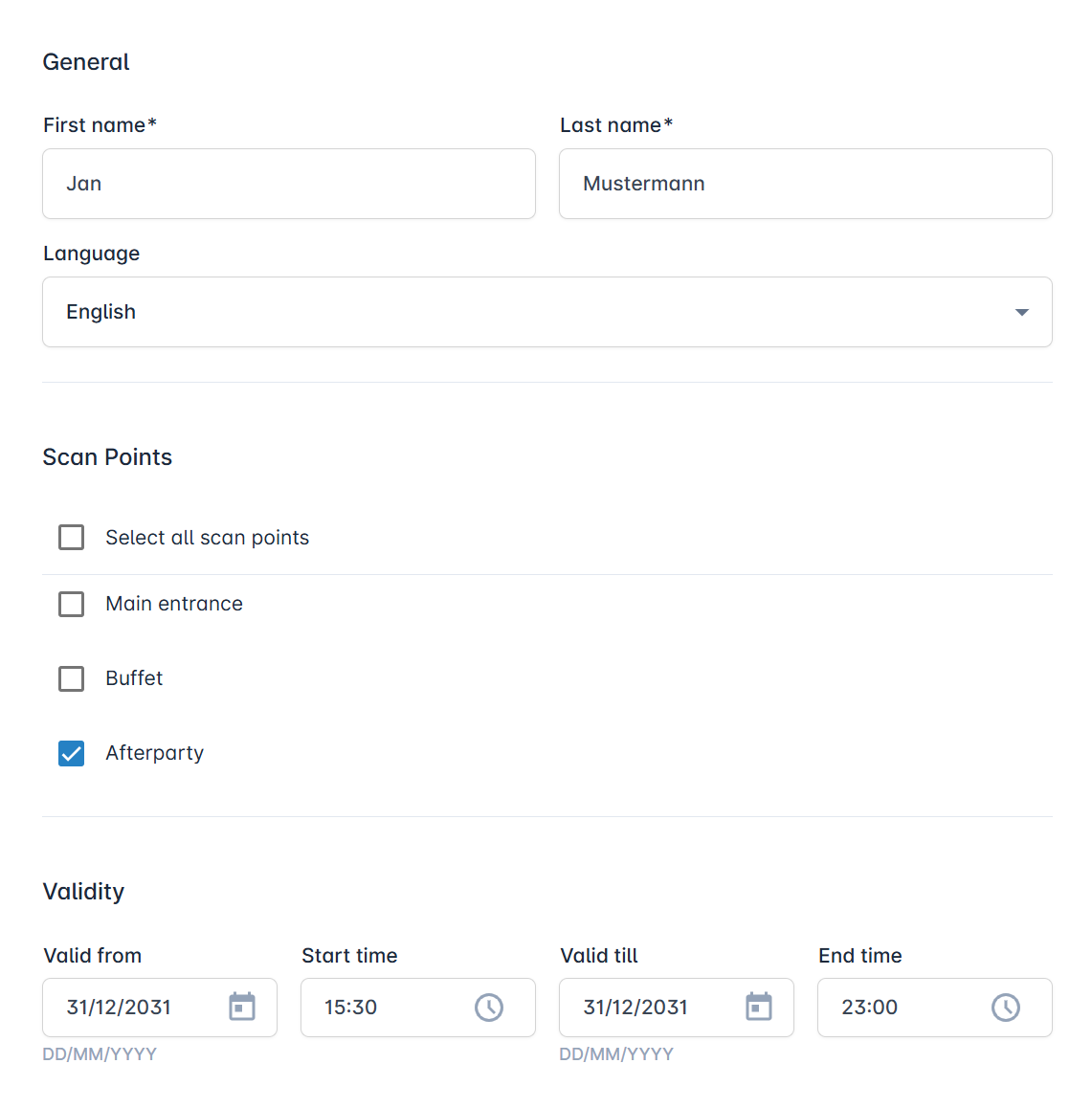
To add an external user, enter the user's name and language, select which scan points the user should have access to, and define the validity period for their Scanapp access. The system will generate an access code that the external user has to enter when opening the white Scanapp app.
External users cannot create new scan points, add users or see the whole guest list. The point of this user right profile is to not be able to change the settings, only to scan tickets. You can determine whether they can register new attendees or edit registration details in the settings of the scan points. Those settings are valid for all users.
Adding an internal user
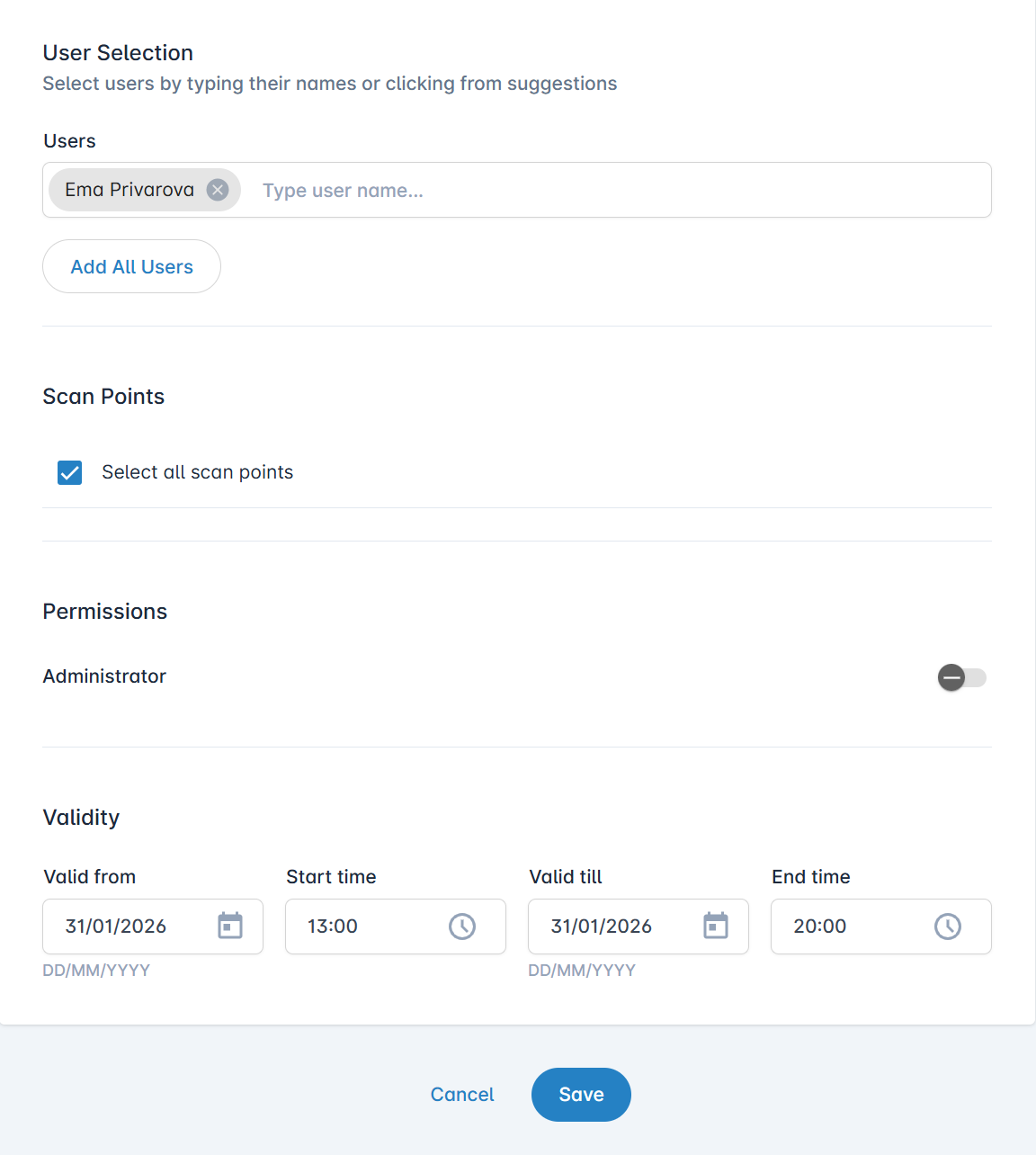
To add an internal user, select a user from the existing InviteDesk user list, choose the scan points they can access, indicate whether administrator rights should be enabled or if they should have restricted rights (identical to those of external users), and set the validity period for their Scanapp access.
Guests
This section provides an overview of your attendees, including their access rights and their current status, which can be:
Registered
Checked-in
Checked-out
No-show (after the event)

How to start scanning
You have 2 options to start scanning on your phone or computer:
Go to scanapp.invitedesk.com and log in using your credentials (for internal users) or an access code (for external users). Then go to the Check-in section.
A shortcut: scan the access QR code with your phone's camera. This will open the browser version of Scanapp on your phone and log you in directly.