Communication setup
On this page:
After you have created your event, you will find the Communication Setup on the top right corner of your event dashboard.
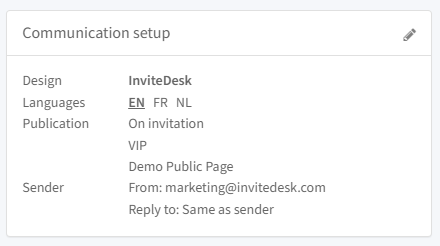
Design
Select the design template for this event here, your default is pre-selected but can be changed. You can upload your event-specific banners and footers here too, so you don't have to create a separate template per event.
The banners and footers uploaded here have priority over the banners in the Templates itself.
Languages
This is the same section as the last step when creating or editing your event. You can define your communication languages and translate your event name and venue details if needed. Which communication languages are available here depends on the languages selected in your main account settings.
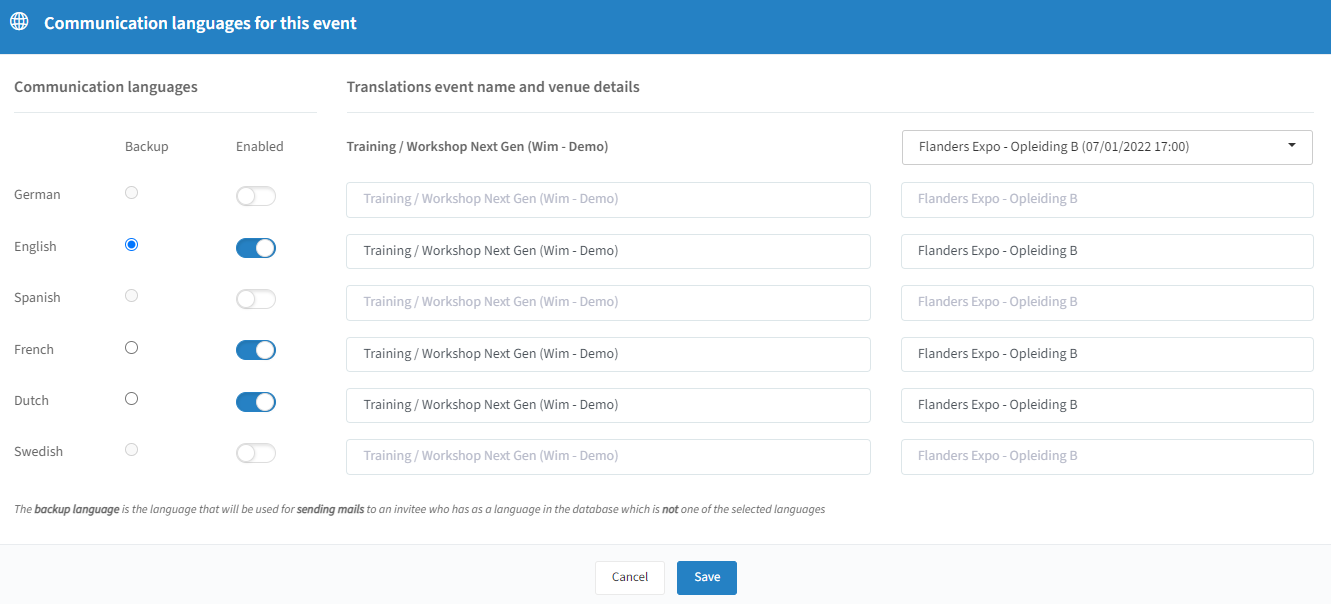
Tip: with multiple venues, a dropdown lets you select and translate per venue.
Publication
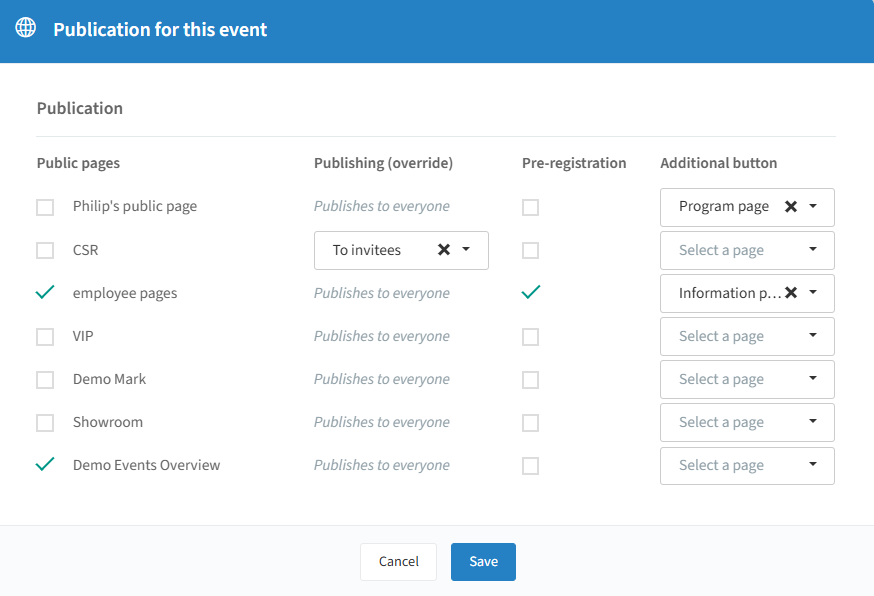
Define which Public Pages the event is published to, if any. The default is "invitation only", meaning no public pages are selected. See the Public Pages page for how to create one.
You can also always distribute the registration page link directly — e.g. on LinkedIn, Facebook, or your company website — to give guests direct access to the registration page (see the Event website).
If you have access to the Platinum Pre-registration feature which works as a sort of waiting list, you can enable it when linking an event to a public page.
The additional button appears in the event overview on the registration page. Usually, there is one button to register, but you can add an extra button to link to any other created page.
Sender Settings
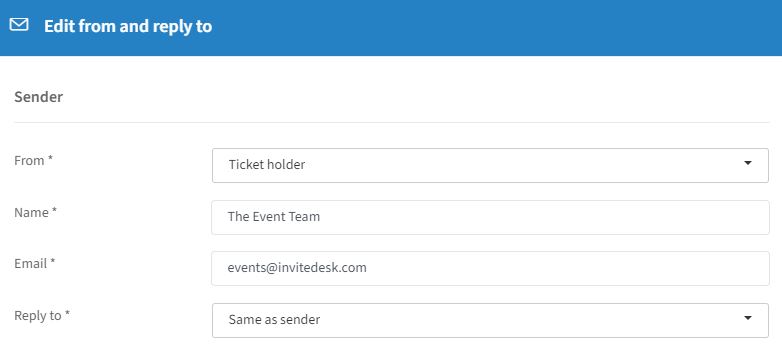
In the sender settings, you can set the email address for communication.
Sender Type | Description |
|---|---|
"Ticketholder" as sender | Invitees receive mail from their linked ticket holder (e.g. sales rep); unlinked contacts get the fallback name/email below. |
"Specific sender" | Mail always comes from the name/address specified, regardless of a ticket holder link. |
"Reply to" is either the same as "From", or a specific address you define.
Tip: "Mail Validation" ensures invitations leave not just under your chosen name but also your domain, this also has a positive imact on the delivery rates of your email communication — contact InviteDesk if not yet set up. Otherwise, a default invitedesk@noreply.com address will be used.
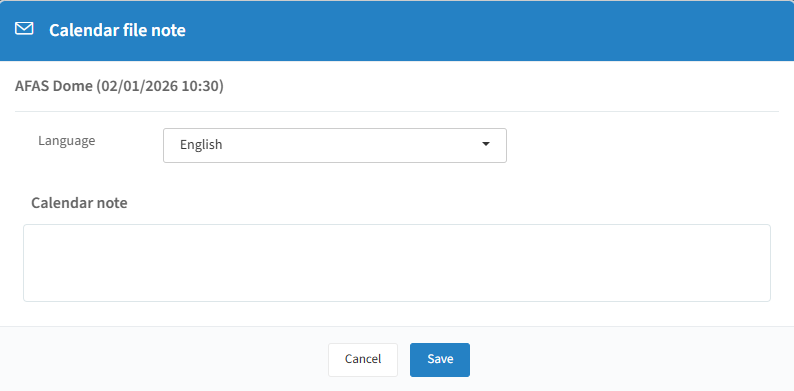
Calendar Files
If you have the paid Calendar files feature, it also appears in the communications section, letting you customize text shown when attendees download the calendar file.