
Event details & Statistics
On this page:
Event details
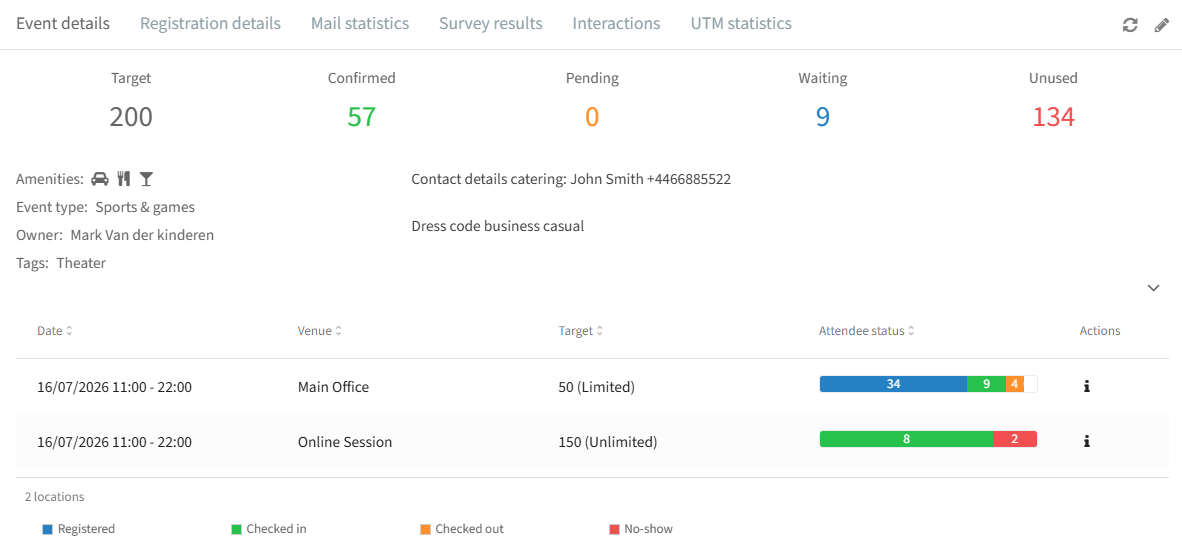
On this tab you can see how many people have registered and the status of attendees per venue. With multiple venues, you can monitor them all here too.
Registration details
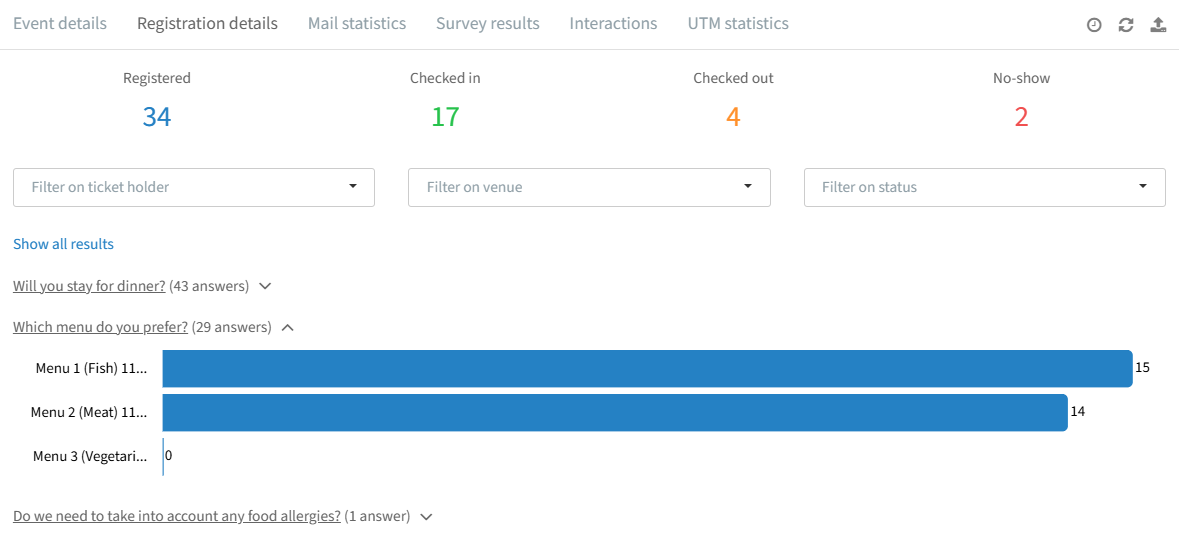
Here you can see how many people registered, checked in, or were labelled "No-show". You can click on expand and see a graphic showing the answer ration per option. If you click on those columns you will be able to see the names of the guests who voted for the selected option.
Filters: ticket holder, specific venue, or status ("Registered", "Checked in", "No-show").
To get all answers and all contact data in one file, export from the attendee list instead (see the Attendee list section).
Mail statistics
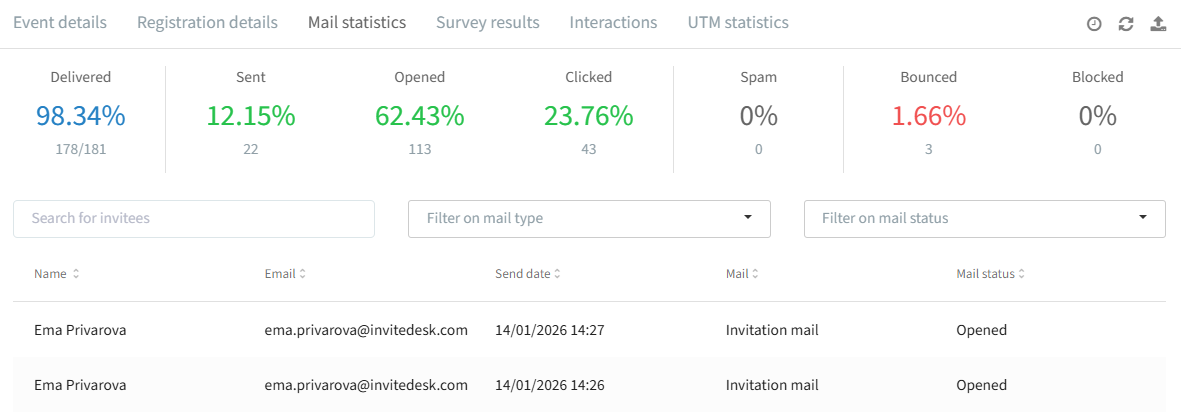
Filters: mail type (e.g. "Confirmation mail") or mail status (e.g. "Clicked"). Export or refresh via the icons on the right.
Delivered is shown separately from the other statuses. It's the overall delivery success rate: the percentage of sent emails that actually reached the recipient's mail server, out of the total number of emails attempted.
The Sent, Opened, Clicked, Spam, Bounced, and Blocked percentages, on the other hand, are mutually exclusive — each recipient is counted only once, under the furthest stage they reached. For example, someone who opened the mail and then clicked a link is counted only under "Clicked", not also under "Opened" or "Sent". Because every recipient falls into exactly one of these categories, they always add up to 100%.
Mail statuses:
Sent: the proportion of emails that actually left your sender server.
Opened: a delivered email that's been opened (some client servers don't report this, leaving mails shown as "Sent").
Clicked: the receiver clicked a link in the mail.
Spam: the recipient flagged the email as unsolicited via their inbox's spam button.
Bounced: soft bounces (temporary — full inbox, timeout; redelivery is attempted for up to 5 days) or hard bounces (permanent — invalid address, non-existent server; these hurt sender reputation).
Blocked: pre-blocked by the mail system because the address previously hard-bounced, was marked spam, or looks spammy. Contact your InviteDesk contact to deblock a verified address.
Survey results
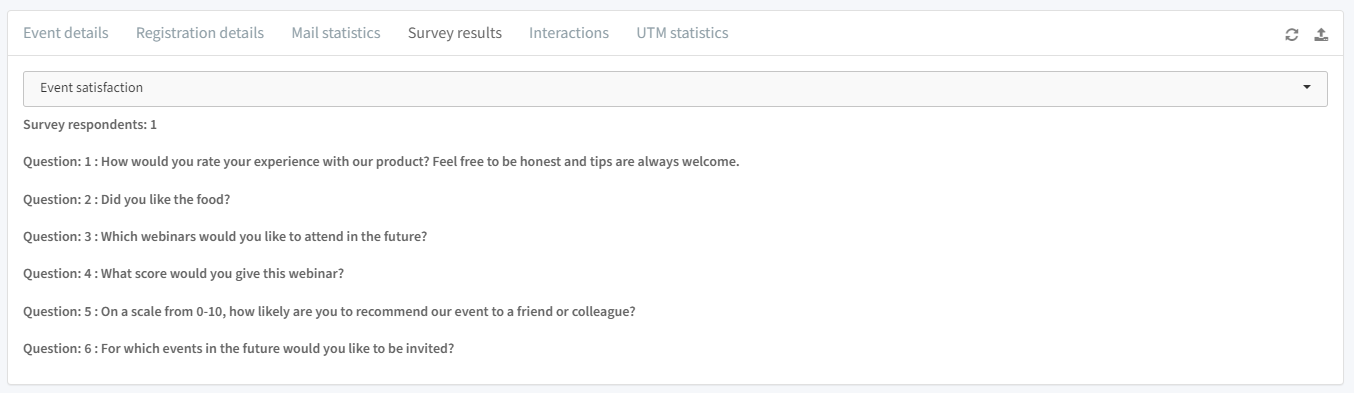
Filter by survey type. Actions: click a question to see its answers; export a summary (counts per question/option) or detailed export (per-contact answers).
Interactions
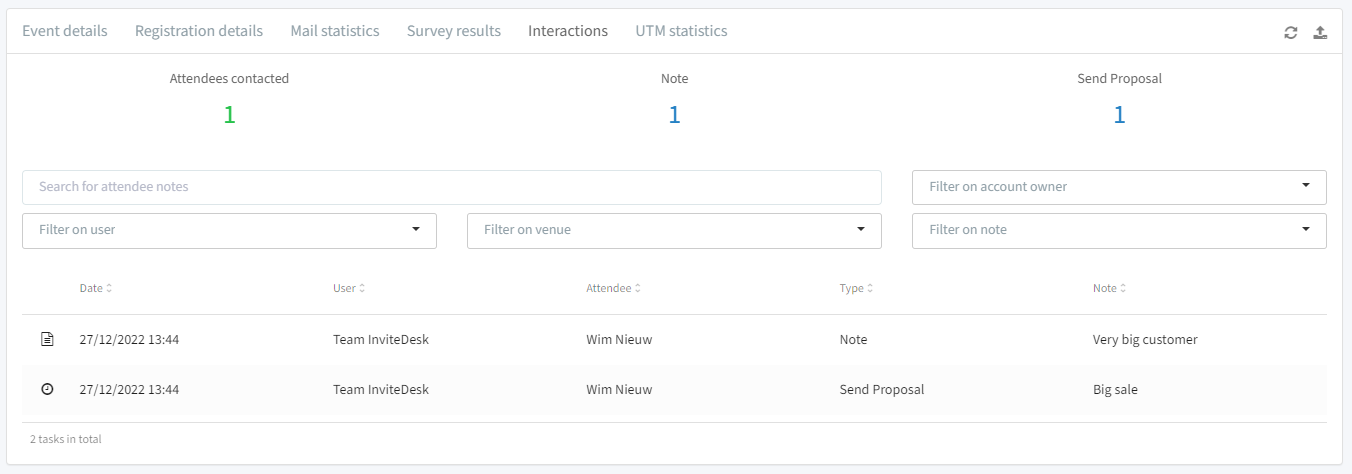
Filters: account owner, user, venue, or note. Actions: search for an attendee by name; export interactions via the export icon.
Registration sources (UTM)
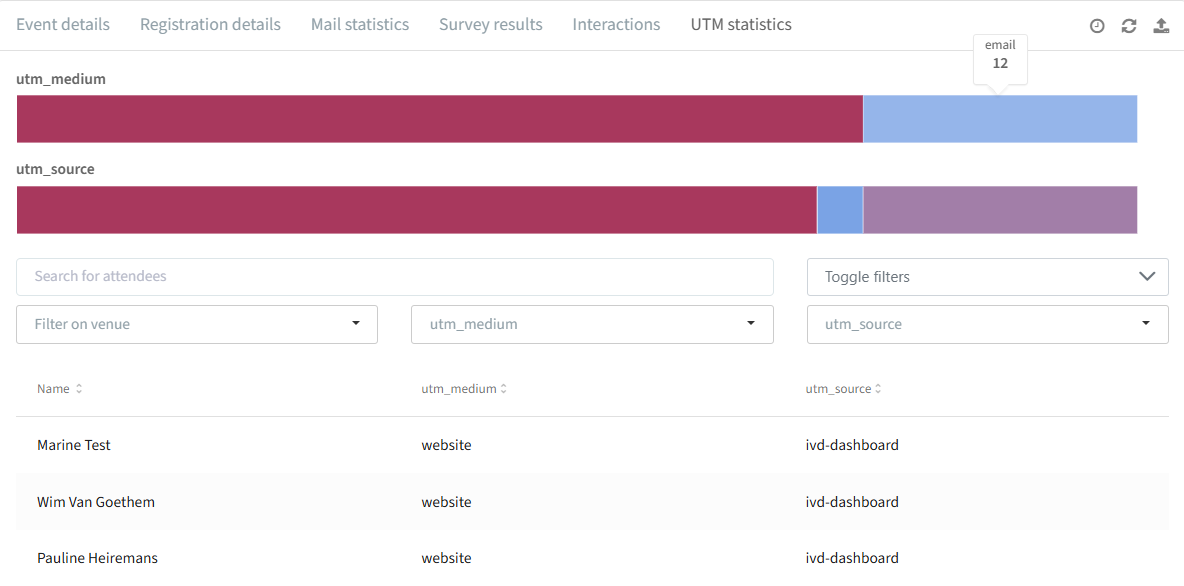
Filters: account owner, user, venue, utm_medium, utm_source, utm_campaign, utm_term, utm_content, utm_campaignid.
Actions: search attendees by name; export UTM statistics.
To combine UTM stats with full contact data, export via the attendee list instead (see the Attendee list section).