
Frontdesk
Check-in of your guests. You can find Frontdesk in the menu bar on the top:

On this page:
Give someone Frontdesk access
The Frontdesk module has been specially developed to make it easy to check in your guests at the event.
When you want to give someone Frontdesk access for a specific event, click on the Frontdesk tab next to Ticket holders when you are on the dashboard of your event:
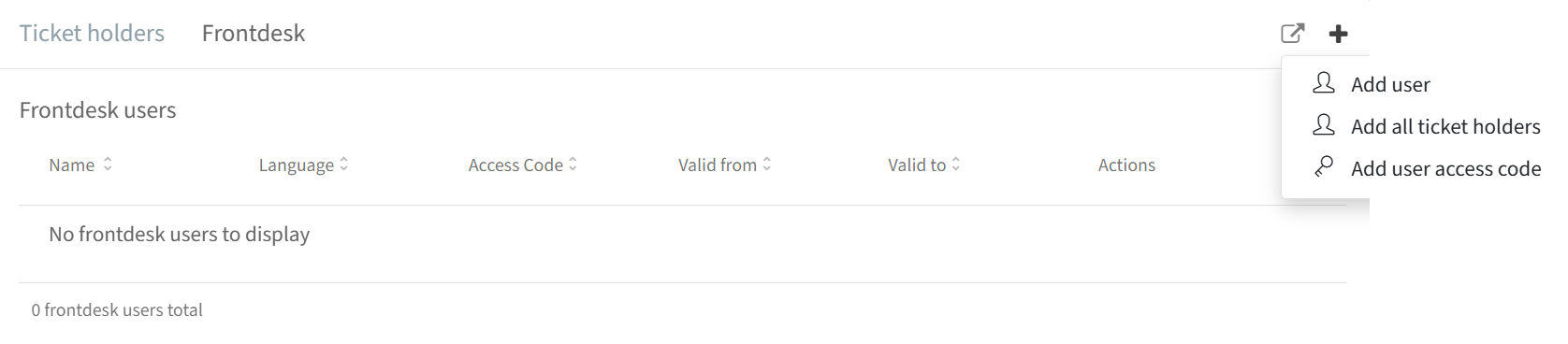
Click on the "+" sign and you will have 3 options:
Add user: you can give any InviteDesk user access to the Frontdesk for this event. Besides the event owner, who is automatically a Frontdesk user for their own event, you can add other InviteDesk users to be Frontdesk users for this specific event.
Add all ticket holders: with one click you can add all ticket holders.
Add user access code: this option is used when creating temporary access for an external user. You can determine a start date and end date for how long this external person can have access to Frontdesk.
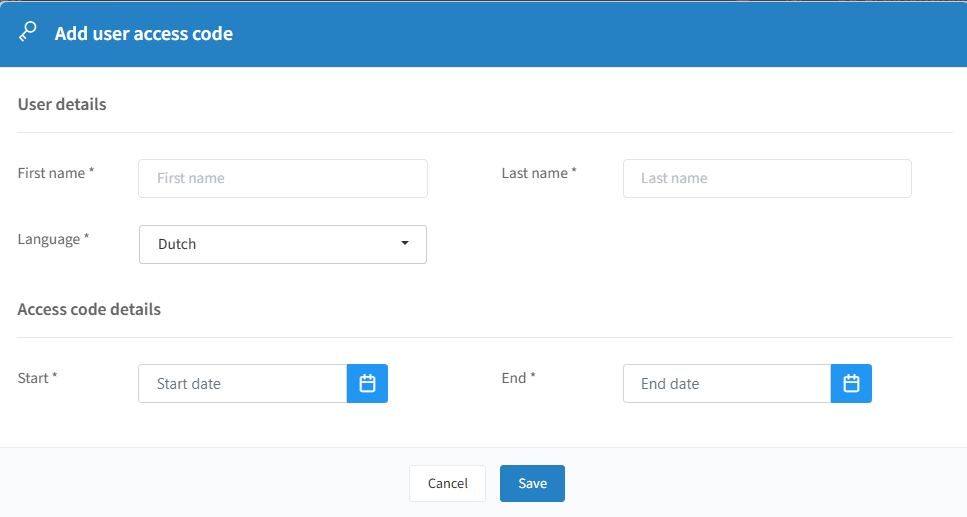
After adding an external user, you will get an access code as in the example below.

The external user can then use this code within the specified timeframe instead of login credentials, either on desktop via https://frontdesk.invitedesk.com/login or through the InviteDesk Frontdesk mobile app (white logo). See "Setup on desktop" and "Setup on mobile" below for more details.
Frontdesk on desktop
Setup on desktop
InviteDesk users: they just need to log in and Frontdesk can be found in the menu bar on the top.
External people: they can access "Frontdesk" by visiting the following link: https://frontdesk.invitedesk.com/login. They will need a code to log in (see "Give someone Frontdesk access" above for how to generate one).
Check in/out on desktop
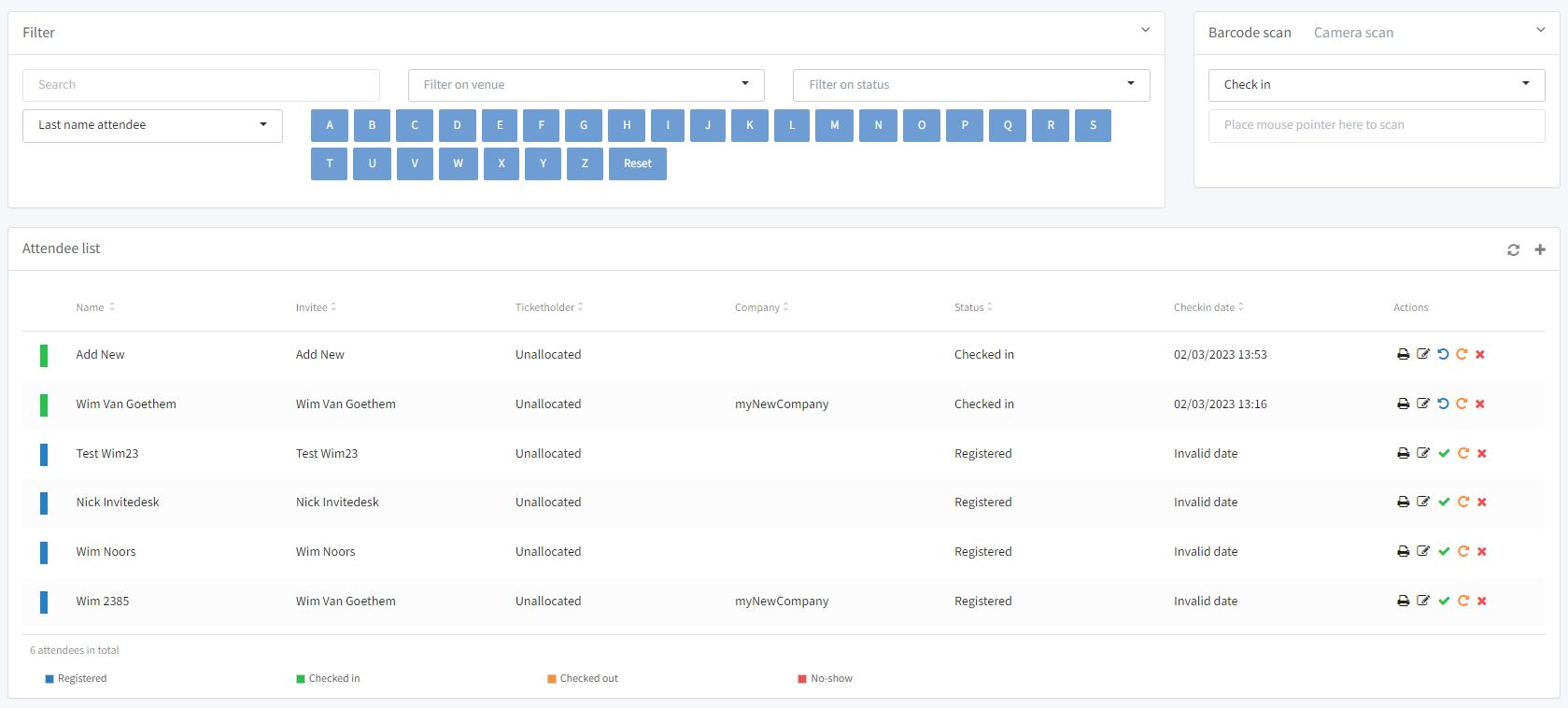
InviteDesk user: once an event is selected you will see the following screen:
External person: once an event is selected you will see the following screen:
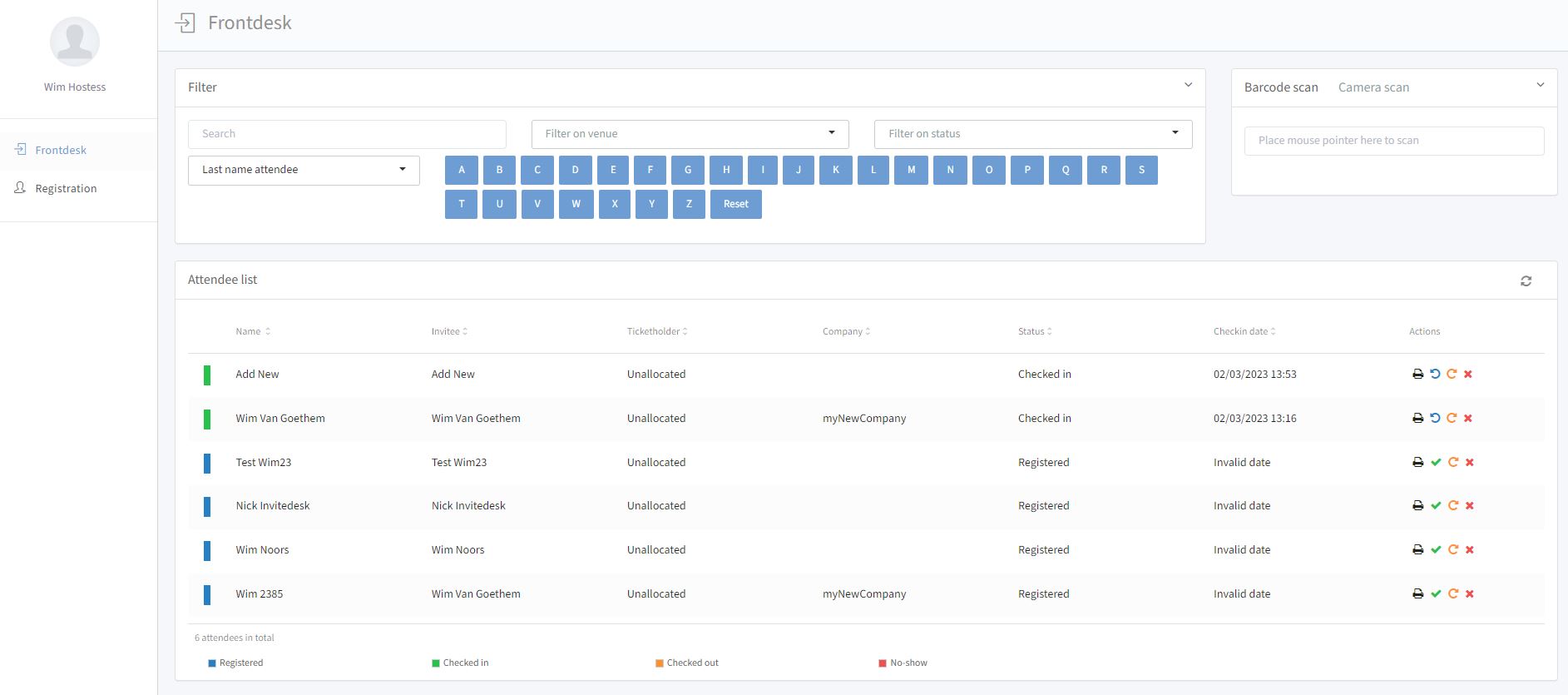
The search options at the top make it easy to find the right guest.
You can perform the following actions:
Print tickets: here you can print the ticket(s) for the selected attendee.
Edit attendee settings: here you can edit the invitation settings for the selected attendee. This option won't be available for external frontdesk users.
Revert: revert the attendee back to status registered.
Check-in: check-in the selected attendee(s).
Check out: check out the selected attendee(s).
No-show: indicates that the selected attendee(s) didn't show up.
If there is a camera on your computer and you have created tickets on InviteDesk with a QR code, you can scan them with the scan function at the top right. For more details on creating QR tickets, see the articles "Ticket (Venue or specific access right)" and "Create pdf ticket" on the Tickets page.
Add party crasher on desktop
It can occur that people will arrive at your event who didn't register beforehand. Therefore we created the possibility to register and check in these persons even if the registration page is already closed.
InviteDesk user: click on the "+" sign to add a new registration:

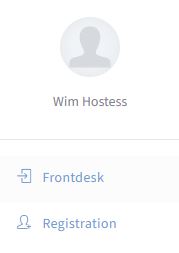
External person: click on "Registration" to add a new registration:
Tip: The languages that will be available will depend on the languages in which you created your registration page/event (see "Event data & information" on the Create an event page).
Frontdesk on mobile
Setup on mobile
InviteDesk users: they need to download our blue app from the Google Play Store (Android) or the App Store (Apple):
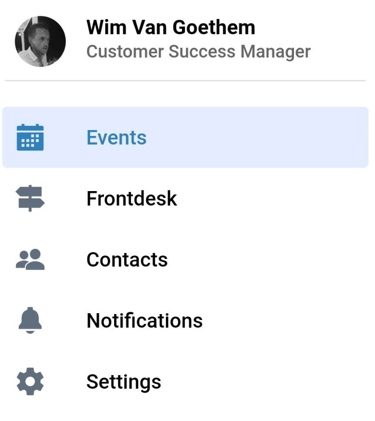
After you have logged in with your Invitedesk credentials, click on the following symbol:

And select Frontdesk:
External persons: they need to download our white app from the Google Play Store (Android) or the App Store (Apple):
They will need a code to log in (see "Give someone Frontdesk access" above for how to generate one).
If you can't find the apps in the stores, you can access either app directly through your browser:
Blue app (InviteDesk users)
Laptop/desktop: https://app.invitedesk.com/
Tablet/Mobile: https://m.app.invitedesk.com/
White app (external persons)
Laptop/desktop: https://frontdesk.invitedesk.com/
Tablet/Mobile: https://m.frontdesk.invitedesk.com/
You will then have the possibility to add the app to your home screen and you will always have the latest version.
Check in/out on mobile
InviteDesk user: once an event is selected and you clicked on "Guests" you will see the following screen:
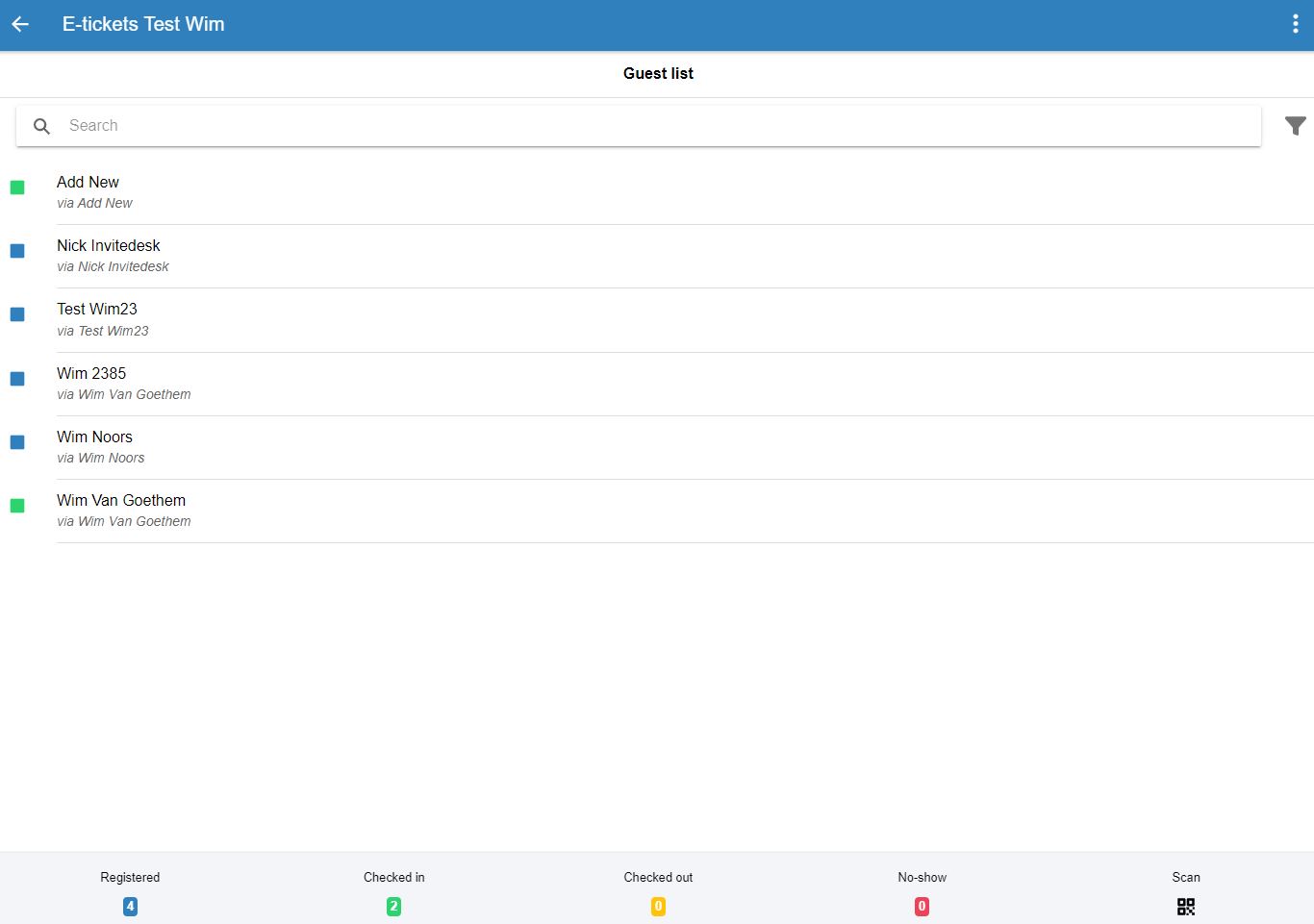
External person: once an event is selected you will see the following screen:
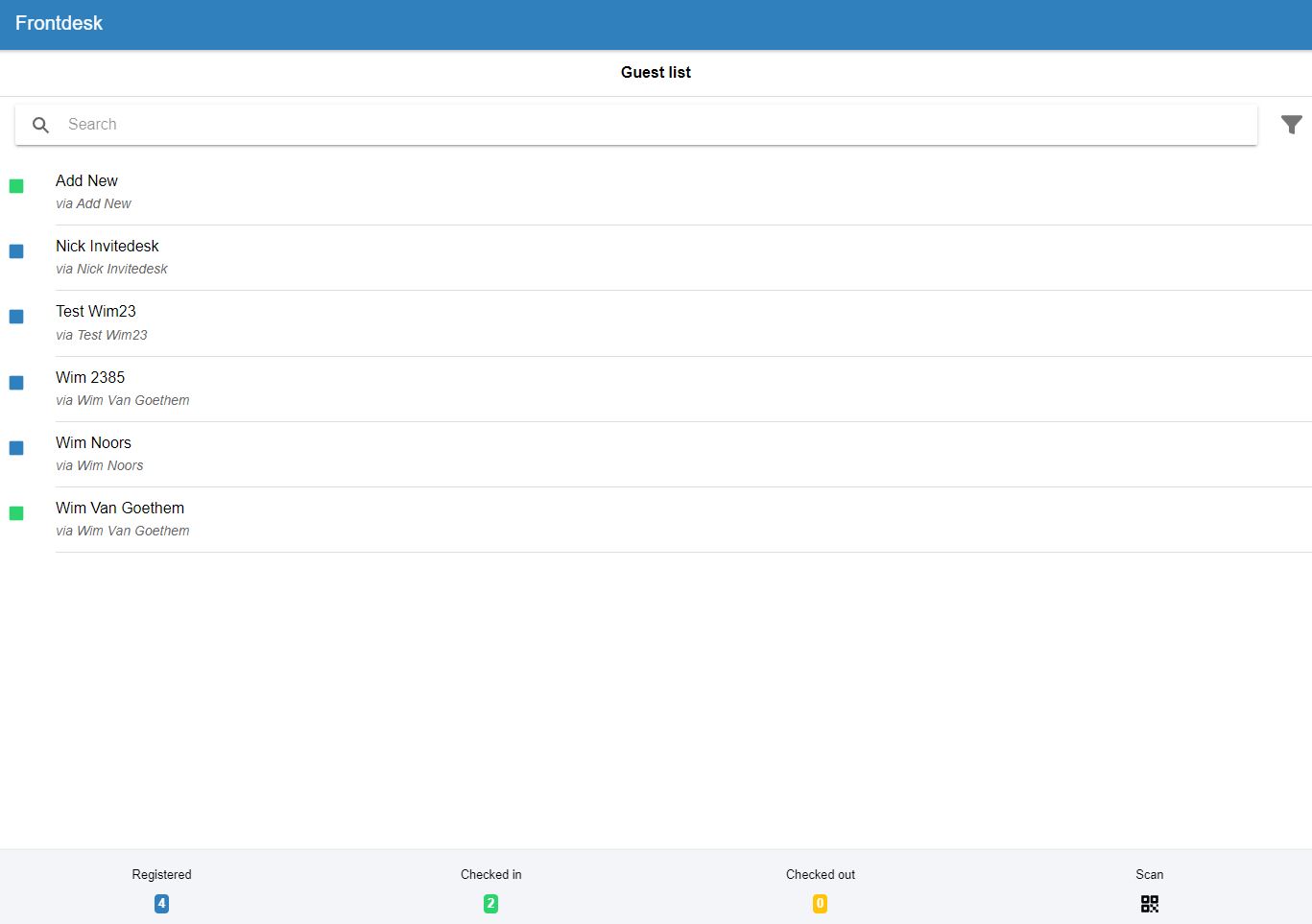
The search options at the top make it easy to find the right guest. You can swipe to the left on the name of an attendee and you will be able to do the following:
Revert: revert the attendee back to status registered.
Check-in: check-in the selected attendee.
Check out: check out the selected attendee.
No-show: indicates that the selected attendee didn't show up.
If you have created tickets on InviteDesk with a QR code, you can scan them with the scan function at the bottom right. For more details, see the articles "Ticket (Venue or specific access right)" and "Create pdf ticket" on the Tickets page.
Add party crasher on mobile
It can occur that people will arrive at your event who didn't register beforehand. Therefore we created the possibility to register and check in these persons even if the registration page is already closed.
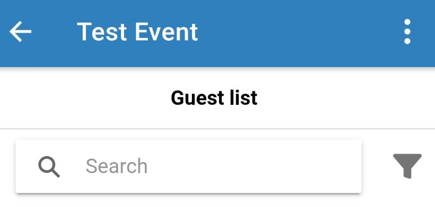
InviteDesk user: click on the 3 dots at the top right to add a new registration.
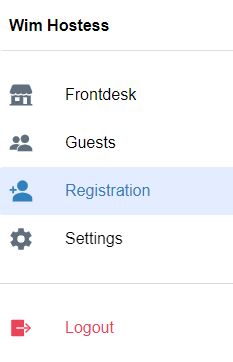
External person: click on the following symbol:
And then click on "Registration" to add a new registration:
Tip: The languages that will be available will depend on the languages in which you created your registration page/event (see "Event data & information" on the Create an event page).