
Custom contact fields
Custom contact fields allow you to define additional types of information you want to collect about your contacts. Once created, they can be imported from or exported into Excel as individual columns, just like standard contact data.
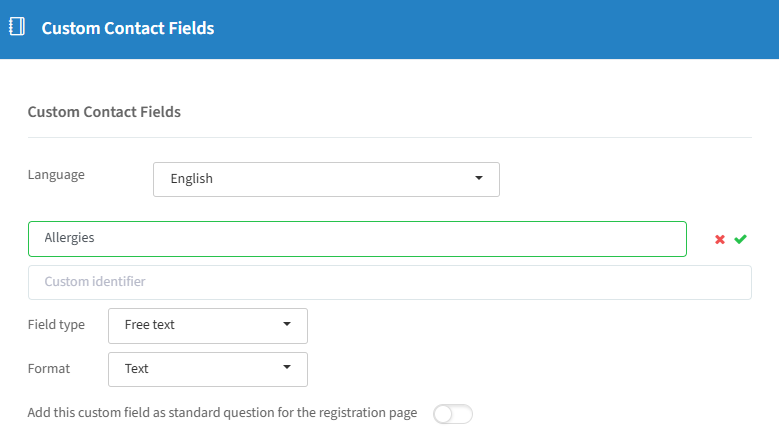
To create a new custom contact field, click on "+ add a field". You will have the following options:
Give your field a name.
Attach a custom identifier (paid feature) to the field, if you want to use the information in those fields as a variable in your email communication, or connect questions on a registration page to this contact field.
Field type: Free Text, Single select list, Multiple select list*, Boolean**, Single select user list, Multiple select user list, or Smart fields (paid feature).
Format: Text, Number, Date, Time, or Country.
You can activate a slider to optionally use this field as a question on the registration page of your event — it will appear in the Custom field section after clicking +Add question while making your registration page.
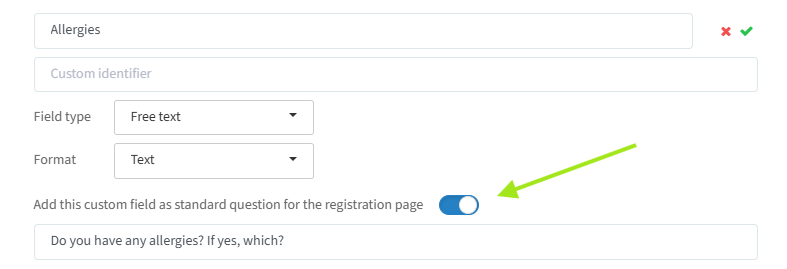
Click on "Save" to keep any changes you have made.
Tips:
Because we are a multilingual platform you could choose to translate your fields for every language. Completing your input in the default backup language is enough.
When importing an Excel file for your address book or invitation list, you can map a specific column to your created custom contact fields. *For a Multiple select list field, separate the options with a comma. **For a Boolean field, put "Yes" or "No" in your column.
You can also filter these fields in your address book to narrow your search (see "Contacts: Filters & actions" on the Address Book page).