
Custom notes
By clicking on "Custom notes", you can create, edit and delete notes/tasks:
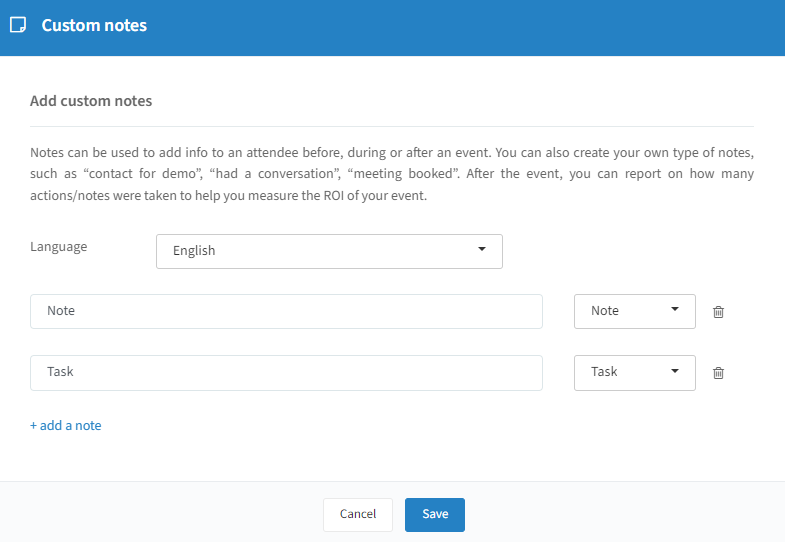
To create a new note or task, click on "+ add a note": give your note a name and choose the type (Note or Task). With the trashcan icon you can delete a note or task. Tip: you can translate your notes and tasks for every language; the default backup language is enough. Click "Save" to keep your changes.
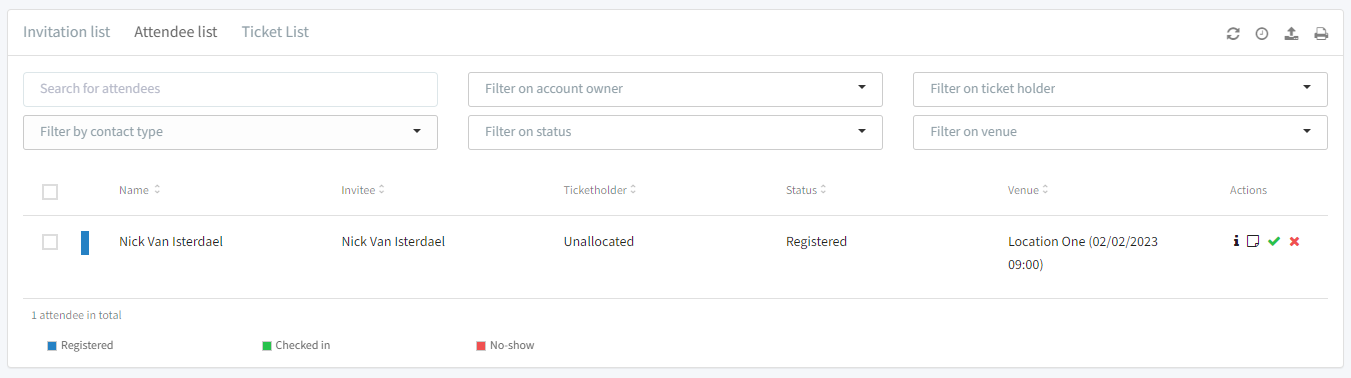
You can now create a note or task for an attendee on event level — click the icon next to the information symbol on the attendee list:
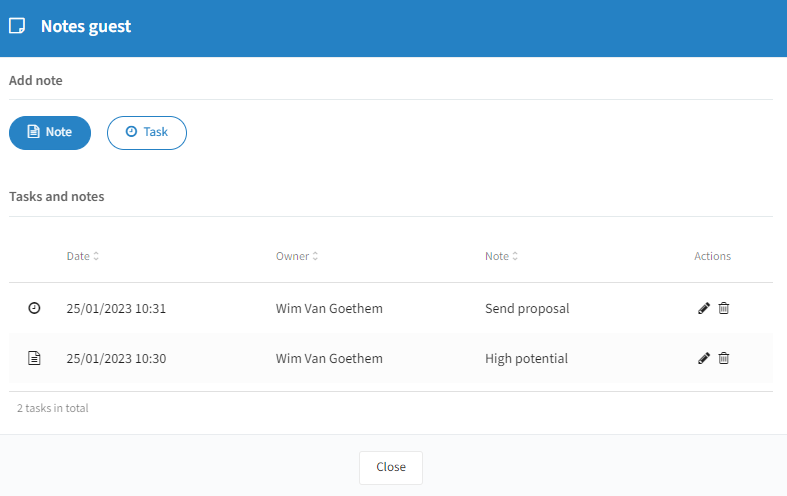
You can manage your notes and tasks in the Interactions tab of your event dashboard (see "Interactions" on the Event details & Statistics page). You also get a quick overview of your own tasks — click "Tasks" at the top right when logged in:
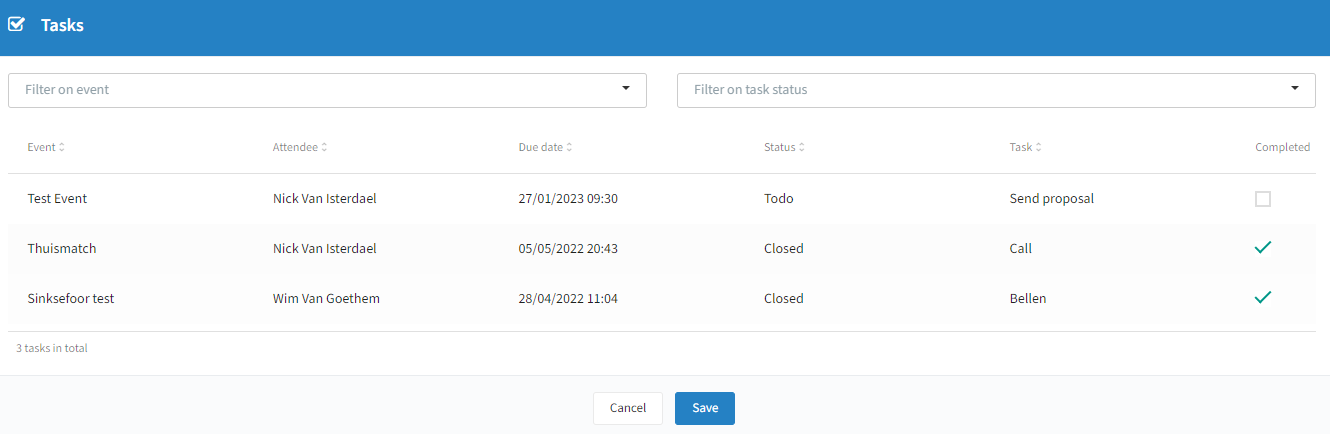
Filters: filter on event, or on task status (Todo, Closed, Overdue). Actions: sort columns; mark the checkbox in the "Completed" column to complete a task.
Benefits in short — making notes at the event: just had an interesting conversation with a prospect who wants a proposal, or detected an upsell opportunity? With the mobile app or on desktop you quickly make a note or set a task, so you keep track of all the good conversations that happened at the event. Reporting: before, during, and after the event you can track all notes on an aggregated level, while individual users follow up on their own notes and tasks in the dashboard — for every event, you can tell how many useful interactions took place and with who.